Physical Address
304 North Cardinal St.
Dorchester Center, MA 02124
Physical Address
304 North Cardinal St.
Dorchester Center, MA 02124

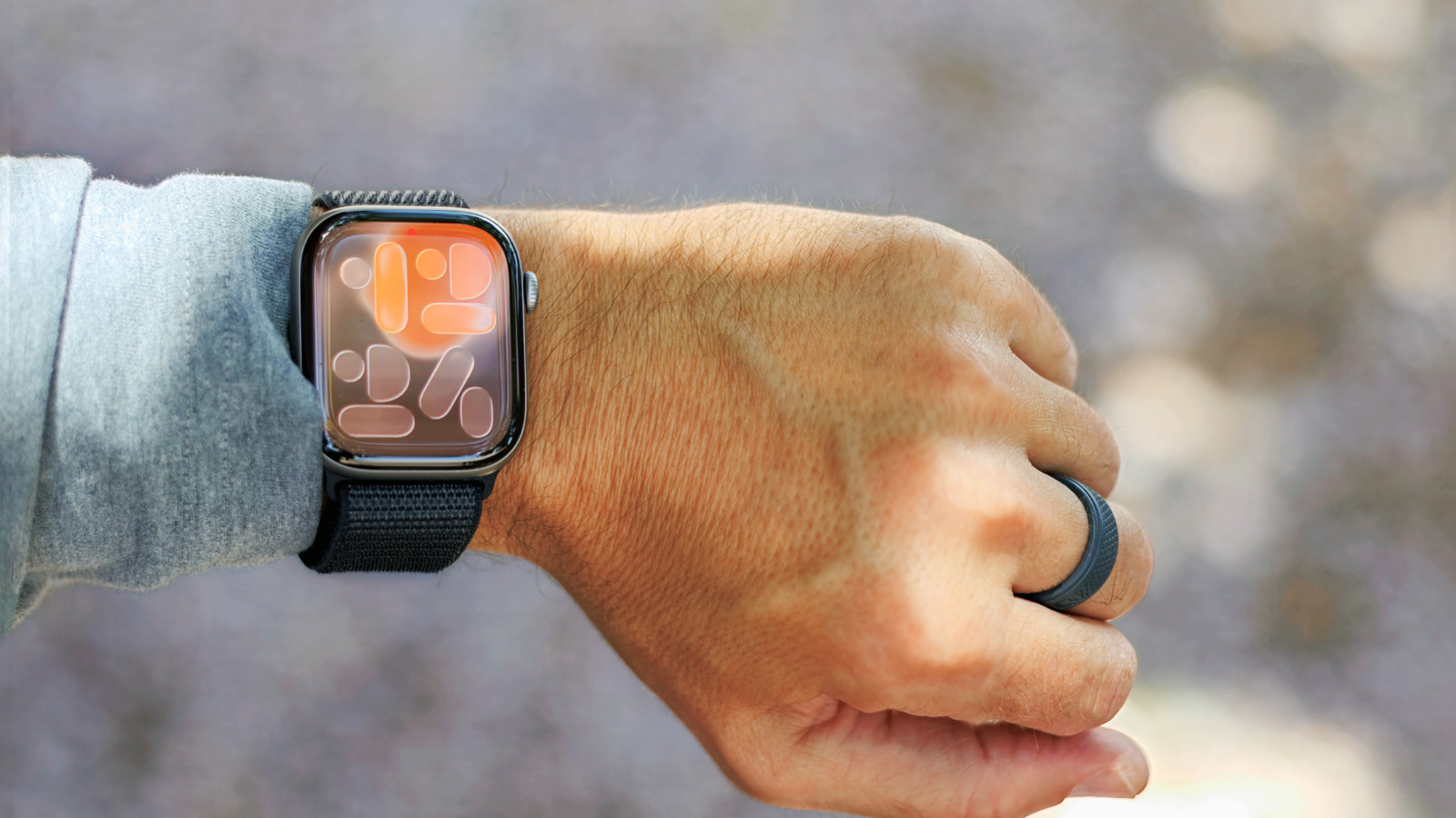
These features don’t usually see the spotlight.
Much is often made of “hidden” features in Apple products. But the fact is, every version of the company’s hardware and software have been pored over so thoroughly that nothing is truly a secret. Some tools do fly under the radar, though. If uncovering functions that are off the beaten path is something you enjoy, here are 10 lesser-known Apple Watch features worth checking out.
We’ll start with an oldie but a goodie: the Auto Unlock feature that debuted in macOS Sierra in 2016. You can avoid typing your Mac’s login password just by wearing your Apple Watch. A satisfying haptic click as you sit down by your machine lets you know the gates have opened.
Most modern MacBooks ship with Touch ID, which has diminished the feature’s usefulness a bit. But it’s still handy for setups without Touch ID, whether that’s the entry-level MacBook Neo, an older MacBook or any desktop model (or MacBook in clamshell mode) with an external monitor. It can also be useful if, perhaps, you aren’t able to access the fingerprint sensor for some reason.
As a bonus, Auto Unlock can also authenticate admin-level actions on your Mac. Basically, anything Touch ID can do, Auto Unlock can as well.
To activate it, go to System Settings > Touch ID & Passwordand turn on the toggle by your watch’s name. You’ll need to have Wi-Fi and Bluetooth activated on your Mac and watch. It only works if you’re logged in to the same Apple account on both devices, and you’ll need to have a passcode set on your watch.
The Apple Watch’s Compass app includes a neat feature called Backtrack that helps you retrace your steps. It records your path, so you can follow it back if you get lost. This only works for Apple Watch Series 6 and later or the Apple Watch SE, and you’ll need to be running watchOS 10 or newer.
By default, the Apple Watch will automatically start a backtrack session when you start a workout in a remote location. (You can make sure it’s activated by going to Settings > Compass on your watch, and checking the Backtrack toggle.) However, since that isn’t something you want to take chances with when braving the great outdoors, it can’t hurt to start it manually.
The easiest way to start is by adding a Backtrack shortcut to Control Center. Apple Watch Ultra owners can also set up the Action button to start a backtrack session (Settings > Action Button > Action > Backtrack > Record path).
When you’re ready to head back to where you started, tap the pause button on the lower right of the Compass screen. Then, choose Retrace Steps and follow the arrow on the compass.
If you have a recent Apple Watch, you can control it with one hand. The double-tap gesture lets you scroll through your Smart Stack (widgets), play or pause media playback and answer calls.
Use double-tap by pinching your index finger and thumb together twice. (It might feel a little weird at first, but it gets more natural over time.) I love it for checking widgets or replying to messages while my hands are messy in the kitchen or when walking my dog.
In watchOS 26, Apple added a companion gesture: wrist flick. This one is more like a back button. By quickly turning your wrist away from you and back, you can dismiss what’s onscreen and return to the watch face. It also works for muting incoming calls, stopping timers and dismissing notifications.
Double-tap and wrist flick require a recent Apple Watch. In the mainline series, you’ll need a Series 9 or later. It also works with the Apple Watch SE 3 and Apple Watch Ultra 2 and later. You can set it up and customize it in Settings > Gestures > Double Tap on your watch (or in the Watch app on your iPhone).
A gesture that’s been around since the first Apple Watch is Cover to Mute. When you get an alert like a call or a timer, you can silence it by covering the screen with your palm for about three seconds. Note that, unlike wrist flick, this won’t dismiss the alert. It just mutes it.
Finally, folks with disabilities (or others who want to maximize their one-handed use) can go even further. AssistiveTouch can simulate screen taps, Digital Crown twists, swipes between screens, and more. You can activate it by going to Settings > Accessibility > AssistiveTouch on your watch. You can learn more about it from Apple.
Here’s one that’s handy for group photos or selfies from a distance. Set up your iPhone on a tripod (or prop it up another way), step into the frame and use your Apple Watch to trigger the shutter.
In watchOS 26, a Smart Stack hint will appear at the bottom of your watch face when you open your phone’s camera. Tap that to open the Camera Remote app. But you can also find it in your app list. (It’s a gray icon with a black camera.) After you open it, the feature shows a live viewfinder to help frame the shot.
The three dots on the lower right open a menu that lets you choose between a countdown and an instant shot. There, you can also switch between the front and rear cameras. You can take a picture either by tapping the shutter button on the watch or by using a double-tap gesture.
You may already know that you can ping your iPhone from your Apple Watch when you lose it. (If not: open Control Center by pressing the side button, then tap the icon that looks like a phone with sound waves coming out of it.) Your phone will make a loud sound, and your Apple Watch will guide you toward it by showing its distance.
But you can also fire the phone’s flashlight to help you find it in a dark room. On the screen that appears after you start pinging, hold down the same icon (the phone with sound waves). That turns on your phone’s flashlight, giving you an extra visual cue.
As its name suggests, the Walkie-Talkie app gives you a push-to-talk connection with a friend who has an Apple Watch. It can be a handy way to communicate quickly without having to call.
Open the Walkie-Talkie app, which is a yellow icon with a black walkie-talkie inside. Then, scroll through your contacts to add someone. After they accept your invitation request, their card in the app turns yellow, and you can start talking.
To use it, open the Walkie-Talkie app, select your contact, and hold down the talk button while speaking. If they’re available, Walkie-Talkie opens automatically on their Apple Watch and plays your message. It works just like a real walkie-talkie, so you’ll take turns talking.
You can set your availability inside the app (or by using the icon in Control Center), so your watch doesn’t start talking at a bad time. You also won’t hear messages when you’re on a phone call or if your watch is in theater mode.
The Timers app gets a lot of use on my watch. But here’s a way to keep track of them when you have more than one going. When creating a timer with Siri, you can name it. (This one works on iPhone, too.)
For example, “Siri, set a pasta timer for eight minutes.” Then, “Hey Siri, set a 15-minute timer for sauce,” and “Siri, set a five-minute sauté timer.” Each one will include the name at the top, so you don’t get them mixed up.
Chances are, you already know about this one. But you’d be surprised how many people don’t. After setting up Apple Pay on your watch, you can use your wearable for contactless payments. No need to whip out your wallet (or even your phone).
In the Apple Watch app on your phone, scroll down to Wallet & Apple Pay and make sure you have at least one card added. Or, open the Wallet app on your watch and check there. Either way, there will be an option to add a card if you haven’t already.
Then, when you’re near a checkout terminal with the contactless symbol, double-click the Apple Watch’s side button, choose the card you want to use and hold your watch within a few centimeters of the reader. A tap, chime and onscreen confirmation will let you know it went through.
If you prefer to hear the time rather than see it, your watch can do that, too. Hold two fingers on the watch face for a moment, and Siri will read the time.
The feature is on by default, but if it isn’t working, you can make sure it’s enabled. On your watch, go to Settings > Clock and turn on Speak Time.
This one’s more novel than practical, but it’s still a tender way to connect with a loved one from afar. Digital Touch sends a haptic representation of your heartbeat to a partner, family member or friend.
In the Messages app on your watch, choose a chat thread, and tap the plus icon next to the text field and choose Digital Touch. On the next screen, hold down two fingers until you see a red heart pulsing and feel the haptic feedback. Tap done, then send it (on the next screen). When they open the Digital Touch message, they’ll feel your heartbeat on their wrist.
Digital Touch doesn’t require your recipient to have an Apple Watch, but it works best if they do. Otherwise, they’re left watching a visual representation of your heartbeat on their phone screen, sans haptic feedback. Not quite the same.